Customer email
AI email support that answers customer emails from your Gmail, trained on your website
AI email support from ReachClaw reads each new customer email in your Gmail and writes the reply from your own website pages, documents and notes. You read it and send it with one click, or let it send on its own when it is confident. Replies go out from your address, in the same thread.
It is in every paid plan, one flat price from $6.99 a month, and it runs on your own Anthropic API key.
What AI email support is
AI email support is software that reads the customer emails arriving in your inbox and writes the replies for you, using what your business has already written down. With ReachClaw that means your website pages, the documents you upload and the notes you add. The AI does not answer from the whole internet, and it is told not to make things up to fill a gap: when your pages don't cover a question, it is to say it will check and get back to the customer.
The difference from a helpdesk is that nothing moves. Emails stay in your Gmail, replies are sent from your Gmail, and you decide for each kind of email whether a reply waits for your click or goes out on its own. One person with one inbox can run it; so can a small team on up to ten inboxes.
How it works
From a new email in your inbox to a reply your customer can read.
Step 1
Connect your Gmail
One Google sign-in. ReachClaw reads the inbox you connect and sends replies from that same address, so customers see your name, not a tool.
Step 2
It reads your website
Give it your address and it reads your pages. Add documents (PDF, TXT, CSV) and notes for anything the site doesn't say. This is what every reply is written from.
Step 3
A new email arrives
Gmail tells ReachClaw the moment a message lands, and it checks on its own every ten minutes as a backup. Nothing to forward and no new address to give out.
Step 4
It sorts the email
Support, sales, partner, personal or general gets a reply. Newsletters, automatic notifications and spam are set aside and never answered.
Step 5
It writes the reply
The reply comes from your pages and notes, links to the real page it used, and matches the sender's language and formality. It is told never to invent a feature, a price or a date.
Step 6
You approve, or it sends
In Co-pilot you read the reply and send it with one click. In Autopilot it sends itself when it is confident, and waits for you when it isn't.
You decide what gets sent
Pick a mode for each kind of email: support, sales and general. Start every kind in Co-pilot, read the replies for a week or two, and move support to Autopilot once you trust it. You can change a mode at any time in Settings.
Co-pilot
The AI writes a reply. You read it in the Inbox and send it with one click, or edit it first. This is the default for support and sales emails.
Autopilot
The AI sends the reply itself when it is confident. If it is unsure, the reply waits for you. It needs 95% confidence to send, and it sends at most 50 replies a day on its own.
Manual
The AI drafts a starting point and marks the email as waiting for you. Nothing is sent until you do it. This is the default for general emails.
Autopilot has two brakes: a reply needs 95% confidence before it may send, and it sends at most 50 replies a day on its own. A reply that misses either waits for you in the Inbox. An inbox-wide auto-approve switch is there too, for when you want every confident draft sent no matter the kind.
What it writes from
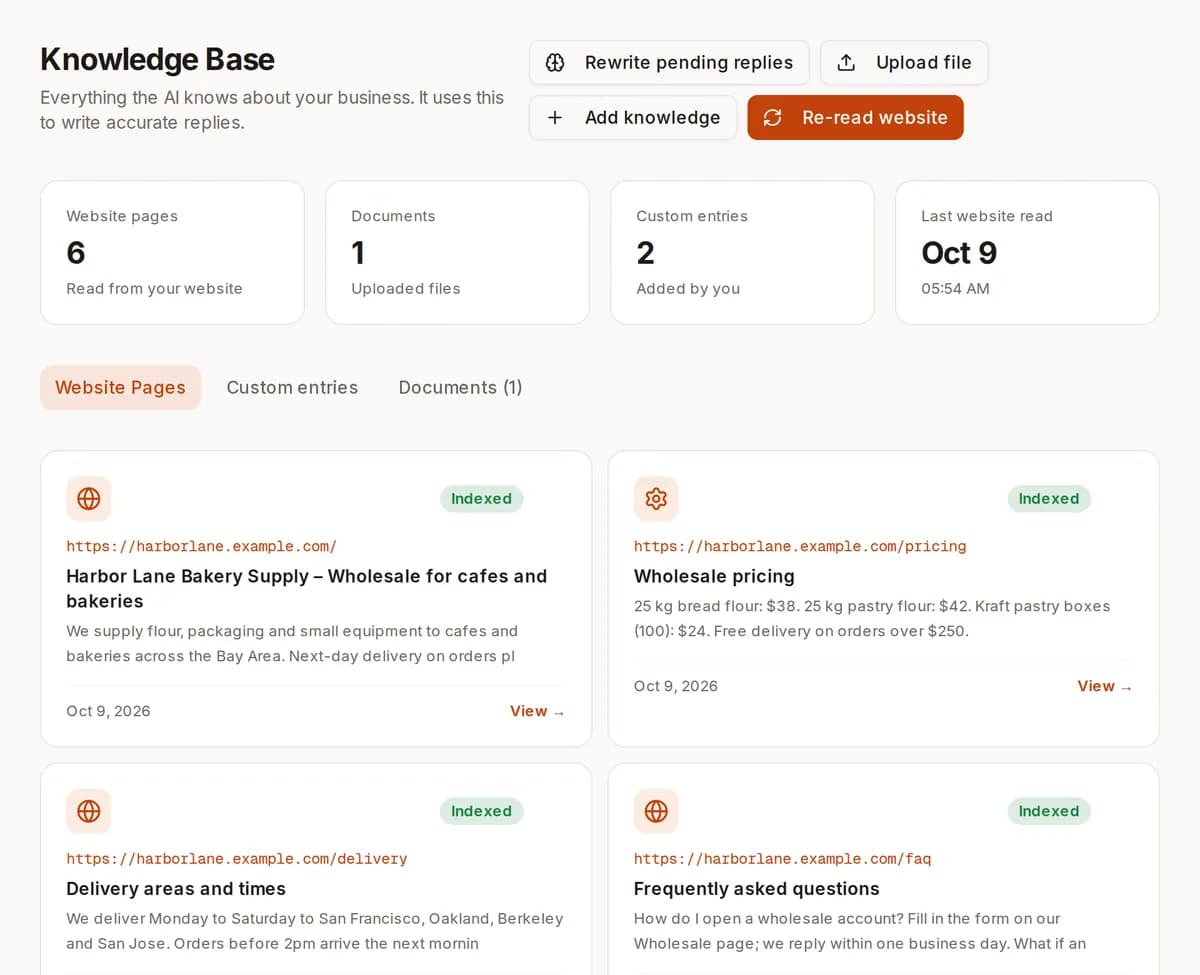
- Your website pages. ReachClaw reads them when you sign up and you can read them again whenever they change. Each reply links to the real page it used.
- Documents and notes. Upload PDF, TXT or CSV files and write notes in Knowledge for anything the site doesn't say: return rules, delivery times, what to tell people who ask for a discount.
- Your tone, sign-off and instructions. Friendly or professional, how to sign, and rules in your own words. The AI matches the sender's language and formality.
- Your edits. When you change a draft before sending, ReachClaw keeps your version and shows the AI your recent edits as examples next time.
- Your own tools, on Scale. Connect MCP servers and the AI can check them while it writes a reply, for example to look up an order.
The same knowledge answers visitors in the AI chat widget for your website, so you keep it in one place.
Where you read and approve replies
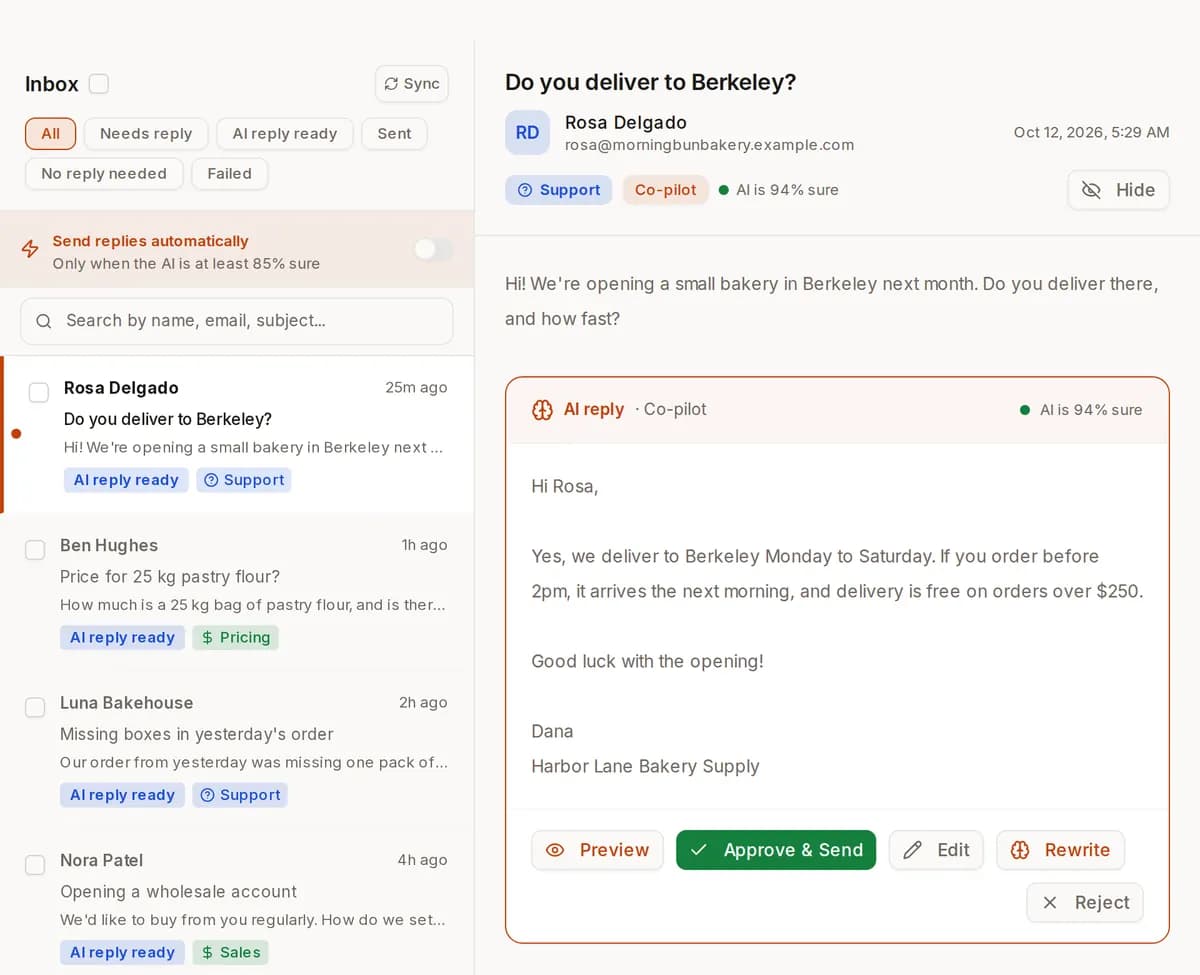
The Inbox in your dashboard shows each conversation as a thread: the customer's email, the draft reply, its kind and how confident the AI was. Approve and send, edit first, or reject. Replies that Autopilot sent are there too, marked as sent, so you can read what went out.
You don't have to sit in the dashboard. A waiting reply shows as a pop-up there, arrives on Telegram with Approve and send and Reject buttons if you connect it, and is listed in the daily summary email. Approving from Telegram sends from your Gmail exactly like approving in the Inbox.
What AI email support costs
One flat monthly price per plan, however many people use the dashboard, and nothing extra for each reply. Email replies, lead search and the website chat are all in every paid plan. The AI itself runs on your own Anthropic API key, billed by Anthropic at their published prices.
| Plan | Price | AI-handled emails a month | Gmail inboxes |
|---|---|---|---|
| Solo | $6.99/mo | 500 | 1 |
| Growth | $29.99/mo | 2,000 | 3 |
| Scale | $69.99/mo | 10,000 | 10 |
At the cap, emails above it stay in your inbox unanswered until next month; there are no overage charges. Yearly billing is about two months free. No free trial; the free account connects Gmail and shows your first 20 emails but does not write replies. Compare all plans.
How to set it up
Four steps, all in the dashboard. No code on your website is needed for email.
Step 1
Sign up and connect Gmail
Create an account and connect the Gmail inbox your customers write to. ReachClaw asks Google for permission to read and send mail on that address.
Step 2
Let it read your website
Enter your website address. ReachClaw reads your pages into its knowledge. Upload documents or write notes for anything customers ask that the site doesn't cover.
Step 3
Pick a mode for each kind of email
In Settings, choose Co-pilot, Autopilot or Manual for support, sales and general emails. Set the tone, your sign-off and any instructions in your own words.
Step 4
Add your Anthropic API key
The AI runs on your own Anthropic key, which Anthropic bills separately. Paste it in Settings → API key. From then on, new emails get replies.
What it doesn't do
- It connects to Gmail only. No Outlook, no IMAP.
- It is not a helpdesk: no tickets, queues or agent seats. A plan is sized by inboxes, not by people.
- It never replies to newsletters, automatic notifications or spam.
- It has no built-in Shopify, CRM or helpdesk connection. Look-ups go through MCP servers you connect, on the Scale plan.
- AI replies can still be wrong now and then. Start in Co-pilot and read what it writes before you hand it Autopilot.
- Without an Anthropic API key, or on the free account, it reads your emails but writes no replies.
Keep reading
Best AI customer service software
ReachClaw next to Intercom Fin, Zendesk AI, Ada, Sierra and others, with prices.
AI chat widget for your website
The same knowledge answers visitors in a chat on your site. Try it live.
Zendesk AI alternative
What Zendesk charges per agent and per AI resolution, against one flat price.
Intercom Fin alternative
Fin's $0.99 per AI resolution against replies that cost nothing extra.
Questions people ask about AI email support
Is there an AI that answers customer emails in Gmail automatically?
Yes. ReachClaw connects to your Gmail, reads each new customer email as it arrives, and writes a reply from your own website pages, documents and notes. Whether it sends on its own is up to you: in Autopilot mode it sends when it is confident, in Co-pilot mode it waits for your one-click approval, and in Manual mode it only drafts. Replies go out from your own Gmail address in the same thread.
Can AI reply to support emails without me approving each one?
Yes, with Autopilot. Switch support emails to Autopilot in Settings and the AI sends its reply itself when its confidence is 95% or higher, up to 50 replies a day. Anything below that confidence, or beyond that daily number, waits in your Inbox for you. There is also an inbox-wide auto-approve switch that sends every confident draft, whatever mode each kind of email is in.
What does the AI write the replies from?
From the pages ReachClaw read on your website, the documents you uploaded (PDF, TXT or CSV) and the notes you wrote in Knowledge. It links to the actual page it used, never a placeholder, and answers in the sender's language. It is told never to invent features, prices or plans, never to promise dates, refunds or discounts that are not in your knowledge, and to say it will check rather than guess. The same knowledge also powers the chat on your website.
Which emails does it answer, and which does it leave alone?
Each new email is sorted first. Customer support questions, sales and pricing questions, partner proposals, personal messages and general enquiries get a reply in the mode you chose for that kind. Newsletters, automatic notifications (receipts, alerts, build reports) and spam are set aside and never answered. You can see the kind on every email in your Inbox.
Does it send from my own email address?
Yes. You connect your Gmail with a Google sign-in and every reply is sent from that address, as a reply in the same conversation. Customers see your name and reply to your inbox. There is no new support address and nothing to forward.
Can I change the tone, the sign-off or the rules?
Yes. In Settings you pick the tone, write the sign-off and add instructions in your own words, for example what to do about refund requests or which page to point people to. When you edit a draft before sending, ReachClaw saves your version and shows the AI your recent edits as examples next time.
How do I know a reply is waiting for me?
A pop-up in the dashboard, a Telegram message with Approve and send and Reject buttons if you connect Telegram, and a daily summary email. Approving from Telegram sends the reply from your Gmail, the same as approving in the Inbox.
Can it look up an order or an account before it replies?
On the Scale plan, yes. You connect your own tools as MCP servers in Settings → Integrations, and the AI can check them while it writes a reply, for example an order status. There is no built-in Shopify, CRM or helpdesk connection; the look-ups go through a server you connect.
How much does AI email support cost with ReachClaw?
Solo is $6.99 a month and covers 500 AI-handled incoming emails on one Gmail inbox. Growth is $29.99 for 2,000 emails and 3 inboxes. Scale is $69.99 for 10,000 emails and 10 inboxes. Each plan is one flat price however many people use the dashboard, and nothing extra for each reply. Yearly billing is about two months free. The AI itself runs on your own Anthropic API key, which Anthropic bills separately at its published prices. There is no free trial; the free account connects Gmail and shows your first 20 emails, but does not write replies.
What happens when I reach the monthly email cap?
Emails above the cap are left in your inbox unanswered until the next month, or until you move to a bigger plan from Settings → Plan & billing. There are no overage charges. Your outbound campaigns and the website chat keep working; the three caps are counted separately.
Does it work with Outlook, or with a helpdesk like Zendesk?
No. ReachClaw connects to Gmail only, and it works inside that inbox rather than as a ticket system. If your support already runs on a helpdesk, our best AI customer service software page compares the tools built for that. If a Gmail inbox is where your customer emails land, this is built for you.
Let your inbox answer itself
Connect your Gmail, let ReachClaw read your website, and read the first replies before you decide what it may send on its own.
Start free