Website chat
An AI chat for your website that answers from your own pages
ReachClaw adds an AI chatbot to your website that answers visitors from what you already wrote: your pages, your documents and your notes. Each answer links to the page it came from. When it can't answer, the visitor leaves their email and you reply yourself.
You add it with one line of code. The website chat is part of every paid plan, from $6.99 a month.

What the chat does
It handles the questions your website already answers, so visitors don't have to dig through pages or wait for an email back. The questions it can't answer come to you.
Answers from your own pages
ReachClaw reads your website, plus any documents and notes you add. The chat answers visitors from that, not from the open internet.
Links to the page it used
When one of your pages covers the question, the answer links to it, so the visitor can read the full page.
Hands over to you
When it can't answer, the visitor can ask for a person and leave their email. You get an alert and reply yourself.
Shows what people ask
Read every chat, see the questions it couldn't answer, and add an answer so it knows next time.
Where the answers come from
When you sign up, ReachClaw reads the pages of your website. You can add more in Knowledge: upload documents (PDF, TXT or CSV) such as price lists and policies, or write short notes for things that aren't on your site yet. The same knowledge is used for your email replies, so you only keep it up to date in one place.
The chat is told to answer only from that knowledge, in short plain sentences and in the visitor's language. It must not make up prices, policies, dates or contact details, and it must not promise refunds or delivery dates your pages don't mention. When a page covers the question, it links to that page.
When your knowledge doesn't cover a question, it says so in one sentence instead of guessing. AI answers can still be wrong now and then, so try it on the test page before you go live, and read your chats in the first weeks.
When the chat can't answer, the visitor reaches you
- The chat says it doesn't know and offers to pass the question to a person.
- The visitor taps "Talk to a person" and leaves their email and a note.
- You get an alert by email, Telegram or a pop-up in your dashboard, whichever you chose in Settings → Notifications.
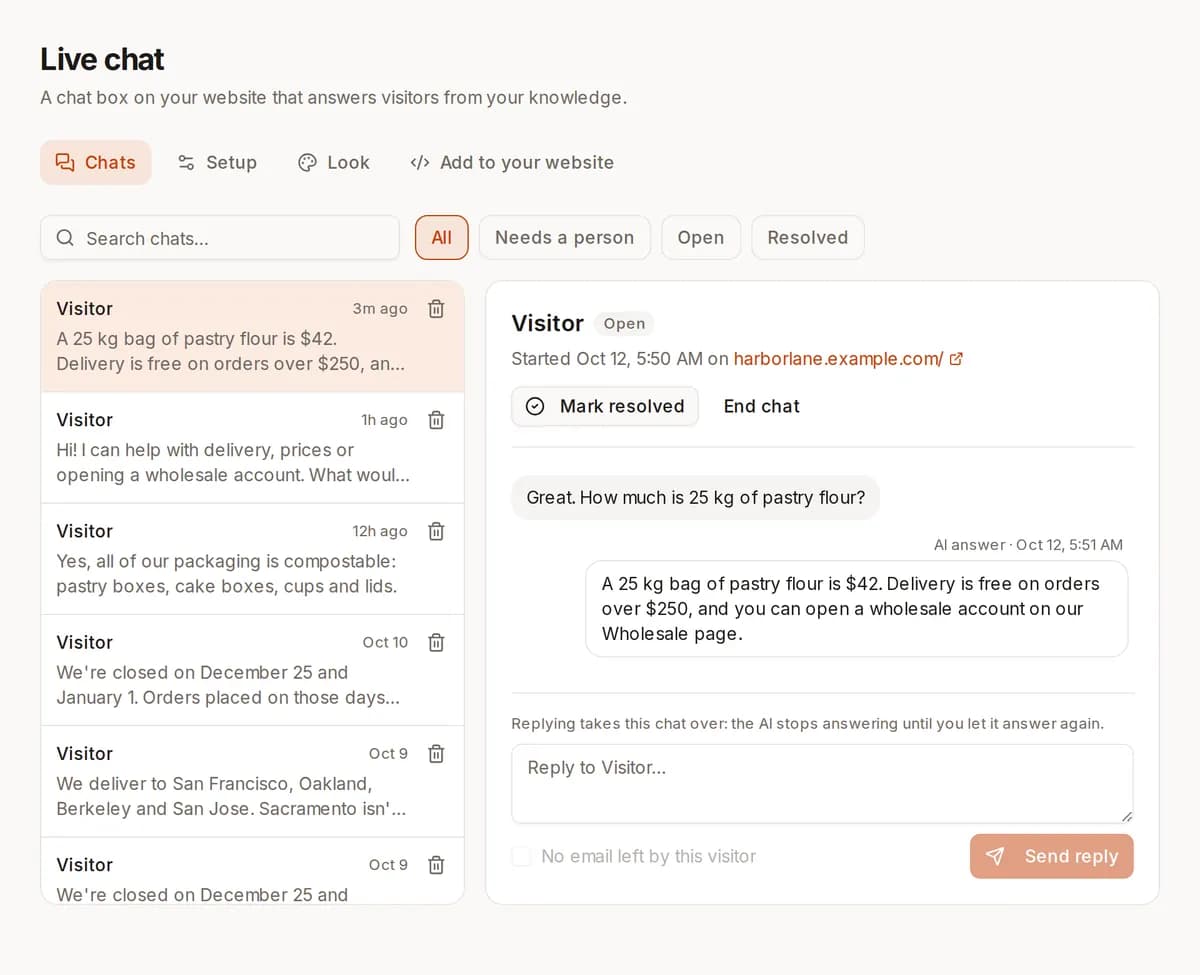
- You reply from the Live chat page. The visitor sees it in the chat if it's still open, and you can have it emailed to them too.
- While you're talking to them the AI stays quiet. When you're done, hand the chat back to it.
So a question the chat can't answer still ends with a name and an email address in your hands, which is often a sales lead. If you'd rather the chat never offer a person, you can turn the hand-over off.
How to add the chat to your website
It takes four steps, and you don't need a developer.
Step 1
Turn on the chat
In ReachClaw, open Live chat and turn it on. Pick its name, the first message visitors see, and up to four suggested questions. "Fill in from my website" can write these for you from your pages.
Step 2
List your websites
Add the websites the chat may appear on. On any other site the chat stays hidden, so nobody can copy your code onto their own pages.
Step 3
Paste one line of code
Copy the line from the Install tab and paste it into your site, once, before the closing </body> tag or in a shared footer. A chat button appears in the corner of every page.
Step 4
Try it first
Open the test page in ReachClaw to chat with it before your visitors do, and check how it answers your common questions.
Where to paste the code
- Any website (HTML)
- Paste the code just before </body>, or once in a shared footer template.
- WordPress
- Install any plugin that adds code to your footer, then paste the code into its footer box.
- Shopify
- Online Store → Themes → Edit code, open theme.liquid and paste the code before </body>.
- Webflow
- Site settings → Custom code, paste the code into Footer code and publish.
- Squarespace
- Settings → Developer tools → Code injection, paste the code into Footer.
- Wix
- Settings → Custom code (needs a connected domain), choose All pages and Body - end.
This adds the chat button to your pages. It doesn't connect to your Shopify products or orders, and there is no ReachClaw app or plugin to install. If you use WordPress, any footer-code plugin from the WordPress plugin directory works.
Make it look like your site
- Five ready-made colour styles, or your own brand colour.
- Light, dark, or match the visitor's device.
- Button on the left or the right, round or pill-shaped, with soft or sharp corners.
- Your own name for the chat, first message and up to four suggested questions.
Changes show in a live preview before you save, and reach your website without pasting the code again.
Read every chat, and fill the gaps
The Live chat page lists every conversation, and a "Needs a person" filter shows the ones waiting for you. Open one to read the whole conversation and reply.
Analytics → Website chat shows how many chats you had, what people asked about, the answers visitors rated down, and the questions the chat couldn't answer. Next to each of those you can add an answer, which goes into your Knowledge so the chat can use it next time.
What it costs
The website chat is in every paid plan, next to email replies and lead search. The AI itself runs on your own Anthropic API key, so that usage is billed by Anthropic at their published prices.
| Plan | Price | Chat answers per month | Also |
|---|---|---|---|
| Solo | $6.99/mo | 500 | Shows "Chat by ReachClaw" under the chat |
| Growth | $29.99/mo | 2,000 | You can hide "Chat by ReachClaw" |
| Scale | $69.99/mo | 10,000 | Hide "Chat by ReachClaw", look things up in your own systems, recognise signed-in visitors |
If you run out of answers, or your key stops working, the chat stays on your site and asks visitors to leave a message instead. Compare all plans.
What the chat doesn't do
- It isn't a live-agent console: there are no agent seats, shared queues or "typing" status for a support team. One account owner replies to hand-overs.
- It works on your website only, not in WhatsApp, Messenger or Instagram.
- It doesn't connect to Shopify, a CRM or a helpdesk. On Scale it can use MCP servers you connect yourself.
- It isn't in the free account. You can sign up and look around for free; the chat needs a paid plan.
If your team needs a full helpdesk, read when Zendesk is the better fit. If you want the whole picture, see everything ReachClaw does.
Keep reading
SiteGPT alternative
SiteGPT's plans and message limits against ReachClaw's flat price.
Best AI customer service software
How ReachClaw compares with other AI support tools.
Chatbase alternative
Credits and add-ons against one flat price, side by side.
Zendesk AI alternative
When a full helpdesk is worth it, and when it isn't.
Questions people ask
Do I need a plugin or a developer to add the chat?
No. You paste one line of code into your site once. On WordPress that means installing any plugin that adds code to your footer; there is no special ReachClaw plugin. Shopify, Webflow, Squarespace and Wix all have a place for custom code, and the Install tab in ReachClaw shows the exact steps for each.
What does the chat answer from?
From the pages ReachClaw read on your website, the documents you uploaded (PDF, TXT or CSV) and the notes you wrote in Knowledge. It is told to answer only from those, to link to the page it used, and to say so when they don't cover the question. AI answers can still be wrong, so try it on the test page and read your chats.
What happens when it doesn't know the answer?
It says it doesn't know instead of guessing, and offers to pass the question to a person. The visitor leaves their email and a note, and you get an alert by email, Telegram or a pop-up in your dashboard, depending on your notification settings. You can turn the hand-over off if you'd rather it didn't offer one.
How do I reply to a visitor?
Open the chat in Live chat and type your reply. If the visitor still has the chat open, they see it there. You can also have your reply emailed to them. While you are talking to them, the AI stays quiet; you can hand the chat back to it when you are done.
Why do I need my own Anthropic API key?
ReachClaw sends each question to Anthropic's Claude using your API key, so the AI usage is billed to your Anthropic account, not marked up by us. Without a working key, or after your monthly answers run out, visitors still see the chat, but it asks them to leave a message instead of answering.
How many answers do I get each month?
Solo includes 500 AI answers a month, Growth 2,000 and Scale 10,000. The website chat is part of every paid plan; the free account doesn't include it.
Can I remove "Chat by ReachClaw"?
Yes, on the Growth and Scale plans. On Solo the line stays at the bottom of the chat.
Does it work on phones?
Yes. On small screens the chat opens full screen, and it works with the keyboard and screen readers. You choose whether the button sits on the left or the right.
Does the chat set cookies, and how long are chats kept?
It doesn't set cookies. It keeps a random visitor ID in the browser's local storage so a conversation carries on across your pages. Chats are deleted 180 days after the last message.
Can it look up an order or an account?
On the Scale plan, the chat can look things up in your own systems through MCP servers you connect, and only for the servers you allow. Answers about a person's own account are given only to visitors your site has signed in.
Add the chat to your website
Sign up, let ReachClaw read your website, turn on the chat and paste one line of code.
Start free