Website chat widget
An AI chat widget for your website that looks things up live, takes voice, and hands over to you
ReachClaw's AI chat widget for website visitors answers from your own pages. On the Scale plan it can check your own tools while it answers, for example an order status. Visitors can talk instead of typing. When a question needs a person, the chat hands over to you with the visitor's email.
The chat in the corner of this page is that widget, running on ReachClaw itself. One line of code adds it to your site. It is in every paid plan, one flat price from $6.99 a month.

Try the live chat on this page
The chat button in the bottom corner is the same widget customers paste into their own sites. It runs from a ReachClaw account whose knowledge is this website, and it looks up plans, limits and its own usage on ReachClaw's tools server when you ask. Nothing is scripted.
Ask it
“How much does it cost?”
Prices and plan limits come from a live look-up on ReachClaw's own tools server, not from a script.
Ask it
“How many answers has this chat given this month?”
A look-up of this account's own usage. You'll see "Looking that up…" first, then the number.
Ask it
“What is the difference between Co-pilot and Autopilot?”
Answered from this website's pages, with a link to the page it used.
- Tap the microphone in the chat to say your question instead of typing it (Chrome, Edge or Safari). Your browser does the listening; no audio reaches ReachClaw.
- Tap “Talk to a person” and the chat hands over to the ReachClaw team, the same way it would hand over to you on your site.
- Each answer you get here counts against this account's monthly answers, like a customer's would.
What the chat widget does
It handles the questions your website already answers, checks your own tools when it may, and brings the rest to you.
Answers from your own pages
The chat answers from the pages ReachClaw read on your website, plus documents and notes you add. It links to the page it used and says so when your pages don't cover a question.
Looks things up live
On the Scale plan it can check your own tools while it answers, through MCP servers you connect. Visitors see "Looking that up…", then a real answer, not canned text.
Takes voice as well as typing
Turn it on and visitors can tap a microphone and say their question. The answer is read back to them. Their browser does the listening, so no audio reaches ReachClaw.
Hands over to a person
When a question needs you, the visitor taps "Talk to a person" and leaves their email. You get an alert and reply from your dashboard.
Lets you step into any chat
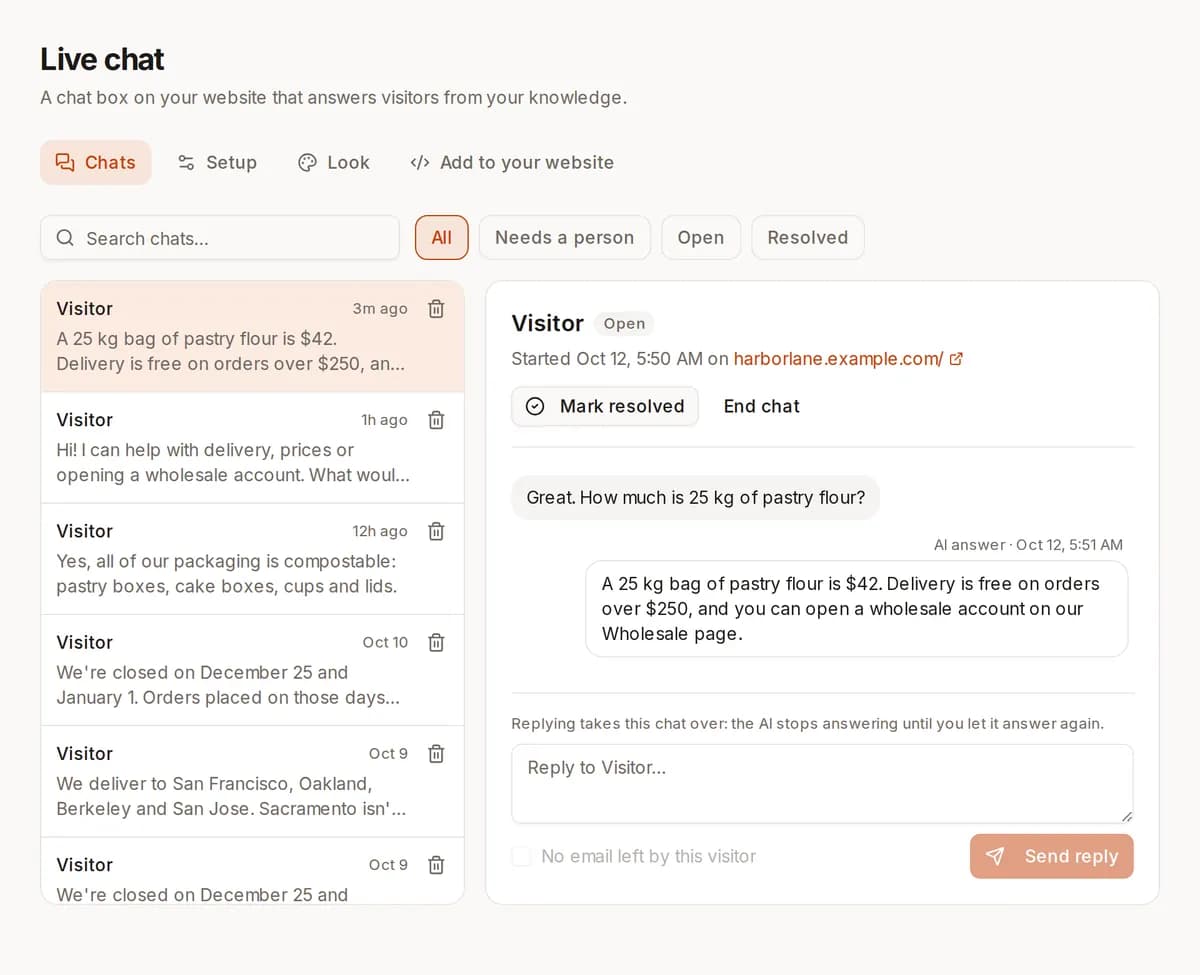
You can join any conversation from Live chat, even if nobody asked for you. While you type, the AI stays quiet. Hand it back when you're done.
Shows what people ask
See how many chats you had, what they were about, which answers got a thumbs-down, and the questions it couldn't answer, with an "Add answer" button next to each.
How the knowledge is built, and how to make the chat look like your site, is on the AI chatbot for your website page.
Live look-ups in your own tools
Most AI website chat tools answer only from text they were given. ReachClaw's chat can also ask your own systems while it answers. You connect MCP servers in Settings → Integrations (HTTPS, up to five). Then, in Live chat → Setup, you turn on “Look things up in your systems” and switch on each server the chat may use. This is part of the Scale plan.
The visitor sees “Looking that up…” under the typing dots, then the answer. In your transcript the message shows “Looked up with” and the tool it used. Only the tool names are stored.
The rules are strict. The chat can only read: it never creates, changes, cancels, refunds, sends or deletes anything. A visitor who hasn't signed in gets nothing about a specific person, order or account, and is asked to sign in. Your website signs visitors in with a signed email address, and the chat checks that signature on every single message, so each visitor only ever gets their own data.
The proof is this site. The chat here uses ReachClaw's own read-only tools server to answer about plans, limits, which plan includes a feature, service status and its own usage this month. Ask it and watch the look-up happen.
Talk to the chat instead of typing
- You switch it on in Live chat → Setup (“Let visitors talk instead of typing”). It is off by default and included in every paid plan.
- The visitor taps the microphone and says one question. The words are sent like a typed message, and the answer is read aloud sentence by sentence as it arrives.
- A phone button starts a call: the chat listens, answers, and listens again. The visitor can interrupt an answer just by talking. The call ends on “End call”, when the chat is closed, or when a person takes over.
- Recognition and reading happen in the visitor's browser: Chrome, Edge and Safari on computers and phones. Firefox has no speech recognition, so it shows no microphone. No audio reaches ReachClaw, and there are no extra keys or costs.
Who answers: the AI, or you
The chat answers on its own, at any hour, with no queue and no approval step; a visitor is waiting, so there is no check-before-send mode for the chat. (If you want to approve AI replies first, that exists for your email replies in the same account.) What you control is when a person comes in.
- The visitor taps “Talk to a person”, or the chat offers one when it can't answer.
- They leave their email and a note. You get an alert by email, Telegram or a pop-up in your dashboard.
- You reply from Live chat → Chats. The visitor sees it in the chat within a few seconds if it's still open, and you can have it emailed to them too.
- While you're in the chat the AI stays quiet. When you're done, hand it back, mark it resolved, or end it.
You don't have to wait to be asked: open any live conversation and type, and the chat becomes a live chat with you. A “Needs a person” filter shows the chats waiting for a reply, and the daily summary email lists new chats and hand-overs from the last day. If you'd rather the chat never offer a person, turn that off.
Chat stats and analytics
Your dashboard shows a “Website chat (last 7 days)” card. Analytics → Website chat goes further: how many chats you had, how many were handed to a person, the share that ended resolved, the typical time to the first word of an answer, the topics people asked about, and when people chat by weekday and hour in your time zone.
Below that are two lists: answers visitors rated down, and questions the chat couldn't answer. Next to each is “Add answer”, which saves a note to your Knowledge so the chat knows next time. Chats from the test page and dashboard previews are left out of the numbers.
How to add the chat widget to your website
Four steps, no developer needed.
Step 1
Turn on the chat
In ReachClaw, open Live chat and switch it on. Give it a name, a first message and up to four suggested questions. "Fill in from my website" can write these from your pages.
Step 2
List the websites it may appear on
Add your domains. On any other site the chat stays hidden, so nobody can paste your code onto their own pages.
Step 3
Paste one line of code
Copy the script tag from the Install tab and paste it before the closing </body> tag, once. A chat button appears in the corner of every page.
Step 4
Try it, then switch on the extras
Chat with it on the test page first. Then turn on voice, look-ups (Scale) or the "Talk to a person" option in Live chat → Setup. Changes reach your site without touching the code again.
The line of code
<script async src="https://reachclaw.com/widget.js" data-widget="cw_your_widget_id"></script>It loads asynchronously and draws only the button; the chat window is created when a visitor opens it. Want it behind your own “Chat with us” link? Call ReachClawChat.open() from that link. It works on any site where you can add code before </body>: WordPress (with a footer-code plugin), Shopify, Webflow, Squarespace and Wix. The steps for each are on the AI chatbot for your website page and in the Install tab.
What the chat widget costs
One flat monthly price per plan, no matter how many people use the dashboard, and nothing extra for each answer. The chat is in every paid plan next to email replies and lead search. The AI itself runs on your own Anthropic API key, billed by Anthropic at their published prices.
| Plan | Price | Chat answers per month | Look-ups in your tools | Also |
|---|---|---|---|---|
| Solo | $6.99/mo | 500 | No | Voice. Shows "Chat by ReachClaw" under the chat. |
| Growth | $29.99/mo | 2,000 | No | Voice. You can hide "Chat by ReachClaw". |
| Scale | $69.99/mo | 10,000 | Yes, through up to 5 MCP servers | Voice, hidden branding, signed-in visitors can ask about their own account. |
When the answers run out, or your key stops working, the chat stays on your site and asks visitors to leave a message instead. The free account doesn't include the chat. Compare all plans.
What the chat widget doesn't do
- It isn't a live-agent console: no agent seats, shared queues or “typing” status for a support team. One account owner replies to hand-overs.
- It has no check-before-send mode. The AI answers visitors on its own; you step in when you want.
- It works on your website only, not in WhatsApp, Messenger or Instagram.
- It has no built-in Shopify, CRM or helpdesk connection. Look-ups go through MCP servers you connect, on the Scale plan.
- Voice depends on the visitor's browser; Firefox shows no microphone.
- It isn't in the free account.
Keep reading
AI chatbot for your website
Where the answers come from, the appearance options and the install steps for each platform.
SiteGPT alternative
SiteGPT's plans and message limits against ReachClaw's flat price.
Chatbase alternative
Credits and add-ons against one flat price, side by side.
Best AI customer service software
How ReachClaw compares with other AI support tools.
Questions people ask about AI chat widgets
What is an AI chat widget for a website?
It is a chat button that sits in the corner of your website and answers visitors with AI. The ReachClaw widget answers from your own pages, documents and notes, links to the page it used, and can hand the conversation to you. You add it by pasting one script tag into your site; there is nothing to install on your server.
Is this a chatbot or live chat?
Both. The AI answers on its own, at any hour, without anyone approving each reply. Any chat can also become a live chat with a person: the visitor can ask for one, or you can step into a conversation yourself from Live chat → Chats. While you are typing, the AI stays quiet, and the visitor sees your reply in the same chat window.
Does the chat widget slow down my website?
The script tag loads asynchronously, so your page does not wait for it. It draws only the button. The chat window itself is an iframe that is created when a visitor opens the chat, or when their pointer moves over the button so the first open feels instant. It sets no cookies.
Can I open the chat from my own button or link?
Yes. The loader puts a small ReachClawChat object on the page with open(), close() and toggle(). Calling ReachClawChat.open() from any button on your site opens the chat. If your code runs before the script has loaded, push the command onto ReachClawChat.q and it runs as soon as the chat is ready. The "Try the chat" button on this page works exactly that way.
Can visitors talk to the chat instead of typing?
Yes, if you switch on "Let visitors talk instead of typing" in Live chat → Setup. It is off by default and included in every paid plan. The visitor taps the microphone and says one question, the words are sent as a normal message, and the answer is read aloud as it arrives. A phone button starts a call: it listens, answers, and listens again, and the visitor can interrupt an answer just by talking. Recognition and reading use the visitor's own browser (Chrome, Edge and Safari, on computers and phones; not Firefox), so no audio reaches ReachClaw and there are no extra keys or costs.
Can the AI chat widget look up an order or an account?
On the Scale plan, yes. Connect your own MCP servers in Settings → Integrations, then in Live chat → Setup turn on "Look things up in your systems" and switch on each server the chat may use. The chat can only read: it never creates, changes, cancels or refunds anything. A visitor who hasn't signed in gets nothing about a specific person, order or account and is asked to sign in. Your website signs visitors in with a signed email address, and the chat checks that signature on every message, so each visitor only gets their own data. There is no built-in Shopify, CRM or helpdesk connection; the look-ups go through an MCP server you connect.
What does the chat answer from?
From the pages ReachClaw read on your website, the documents you uploaded (PDF, TXT or CSV) and the notes you wrote in Knowledge. The same knowledge is used for your email replies, so you keep it in one place. The chat is told to answer only from that, in the visitor's language, and to say so when it doesn't know. AI answers can still be wrong now and then, so read your chats in the first weeks.
Can a person take over the chat?
Yes. When the visitor asks for a person, or when the chat can't answer and offers one, the visitor leaves their email and a note. You get an alert by email, Telegram or a pop-up in your dashboard, whichever you turned on. You reply from Live chat → Chats, and the visitor sees it in the chat within a few seconds if it is still open; you can have it emailed to them as well. You can also join any chat without being asked. When you're done, hand the chat back to the AI, mark it resolved, or end it. If you'd rather the chat never offer a person, turn that off in Setup.
Which plans include the chat widget, and what does it cost?
Every paid plan includes it: Solo at $6.99 a month with 500 AI answers a month, Growth at $29.99 with 2,000, and Scale at $69.99 with 10,000. That is one flat price per plan, no matter how many people use the dashboard, and nothing extra for each answer. Look-ups in your own tools are on Scale; voice is on every paid plan. The AI itself runs on your own Anthropic API key, which Anthropic bills separately. The free account lets you look around but does not include the chat.
Does it work on WordPress, Shopify, Webflow, Squarespace or Wix?
Yes, on any site where you can add a line of code before </body> or in a shared footer. WordPress needs any plugin that adds code to the footer; Shopify, Webflow, Squarespace and Wix each have a custom-code setting. The Install tab in ReachClaw shows the steps for each, and so does our AI chatbot for your website page.
What happens when the monthly answers run out, or my API key stops working?
The chat stays on your site. Instead of answering, it asks visitors to leave a message with their email, and you get it like any hand-over. The counter resets at the start of the next month, or you can move to a bigger plan from Settings → Plan & billing.
Does the widget set cookies, and how long are chats kept?
It sets no cookies. It keeps a random visitor ID in the browser's local storage so a conversation carries on across your pages. Chats are deleted 180 days after their last message, and a chat idle for 30 minutes is closed automatically.
Add the chat widget to your website
Sign up, let ReachClaw read your website, turn on the chat and paste one line of code.
Start free